Making OAuth 2.0 auth code flows work between containers and their host OS
Three-legged OAuth 2.0 flows that involve the generation of URLs to authenticate with, and where there's a subsequent return to the local context, are not well suited to container / host environments where the OAuth flow is initiated from a process in the container but the browser used runs on the host OS. Here's one way of solving this.
The example here relates to using the jl CLI, the command line tool for
Joule
Studio.
Unless otherwise stated, activities described here all happen in the container.
Starting the authentication flow
To use jl in a project, we need to first
authenticate
with a Joule Studio backend, using jl login, specifying the sign-in URL
obtained from our Joule Studio "Develop > Authorizations" settings:
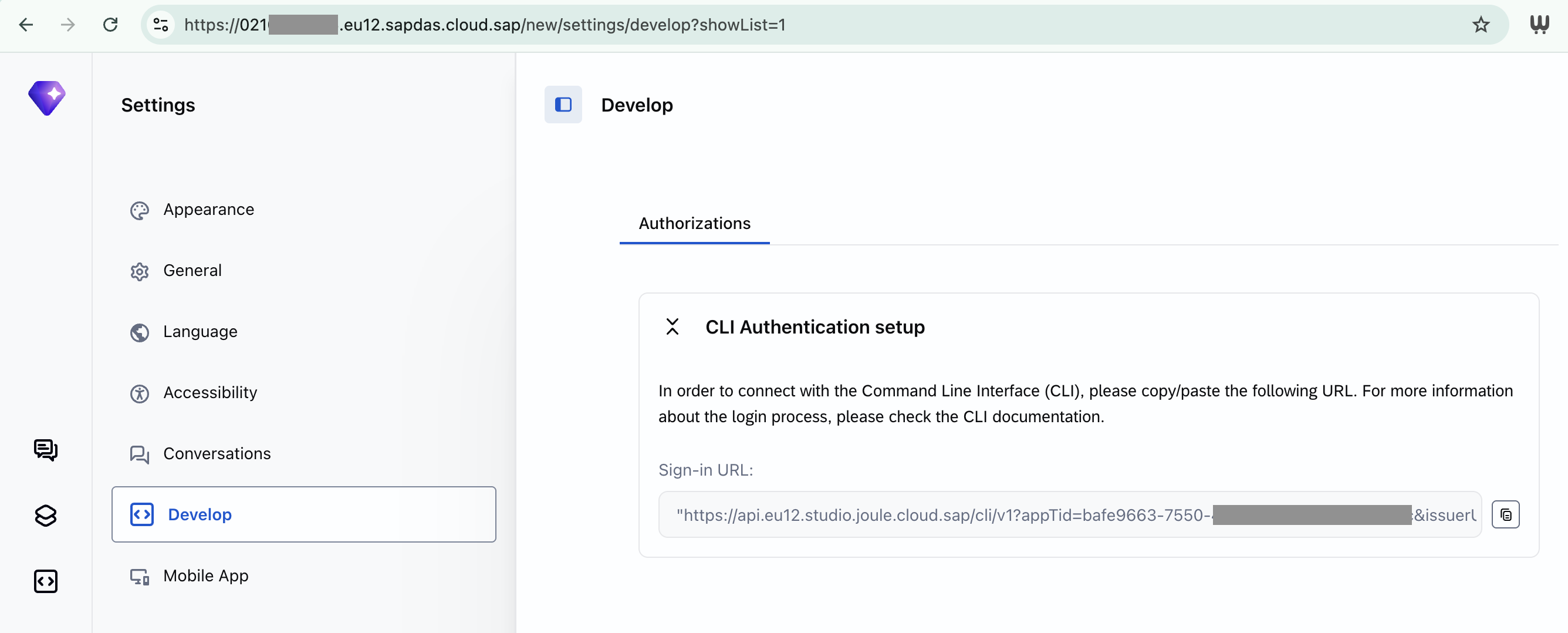
Here's what it looks like when jl login <url> is invoked (details elided
for obvious security reasons, and lines split for readability):
; jl login "https://api.eu12.studio.joule.cloud.sap/cli/v1?appTid=bafe9663-...
&issuerUrl=https%3A%2F%2Fagy....accounts400.ondemand.com
&clientId=ad445849-..."

Opening browser to log in to https://agy....accounts400.ondemand.com ...
If the browser does not open, copy the URL below and open it manually.

  https://agy....accounts400.ondemand.com/oauth2/authorize
  ?response_type=code
  &client_id=ad445849-...
  &redirect_uri=http%3A%2F%2F127.0.0.1%3A43963%2Fcallback
  &code_challenge=tW6537dp_...
  &code_challenge_method=S256
  &state=uJW...
  &scope=openid+offline_access
  &app_tid=bafe9663-...
This is the start of a three-legged OAuth 2.0 login flow.
Visiting the URL
Assuming that there's no browser in the container to invoke, we'll need to explicitly select the URL and visit it manually, using a browser at the host OS level (macOS in my case).
If we look closely at the URL we'll see it includes a redirect_uri parameter
which indicates the URL that we are to be redirected to once authentication in
the browser has happened.
Here's that redirect_uri parameter and value from the URL above:
redirect_uri=http%3A%2F%2F127.0.0.1%3A43963%2Fcallbackand here's what it looks like without URL encoding:
redirect_uri=http://127.0.0.1:43963/callbackThis particular value (specifically the port number) will be used in examples that follow.
How the flow works
The idea is that the jl login process spawns a temporary HTTP server
which starts listening on that specific socket (i.e. localhost, or
127.0.0.1, plus the random port 43963), expecting a callback
to a URL that thus starts http://127.0.0.1:43963/callback.
That callback comes via the browser, in that once the actual authentication
process has been completed successfully in the browser (at the authorization
server, api.eu12.studio.joule.cloud.sap), the HTTP response is a redirect,
sending the browser to the redirect_uri (http://127.0.0.1:43963/callback)
with various parameters - that convey information from the authorization
server - added on to the end.
This set of parameters includes one called code which has the authorization
code that jl needs.
Here's an example of what such a complete callback URL looks like (again, with some values elided, and lines split for readability):
http://127.0.0.1:43963/callback
  ?code=u7LpLuRfiutemU4GdWUbMH80E_...
  &iss=https%3A%2F%2Fagy....accounts400.ondemand.com
  &state=uJW...
Once the browser accesses that callback URL, the code and the other parameter
values from the authorization server are effectively "received" by the temporary
HTTP server, which is part of jl login, and are stored, completing the flow.
The problem
But the temporary HTTP server is running only in the container (where jl login was called), and the random port is not published from the container out
to the container runtime's host.
And as the browser operation is in the context of the host OS, the redirection
will fail (as there is nothing listening on localhost at that random port at
the host OS level):
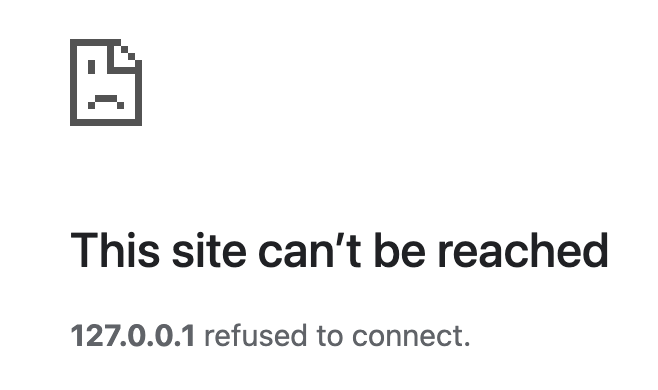
and thus the whole authentication flow will not be completed.
The solution
So we need to create a temporary tunnel from the host OS into the container, so that the browser can reach that HTTP server in there.
We might think to influence the
jl loginpart by somehow supplying a fixed PORT value which will be used instead of it picking a random one, a value that we know about in advance and can have set up to have been published from the container.Unfortunately:
- we need to do this before we even create the container
- there is no facility to specify this to
jl loginanyway1
Using SSH remote port forwarding
To create a tunnel, we can use
SSH's remote port
forwarding, with the -R option.
The
-Loption creates a tunnel going from local2 to remote, whereas the-Roption creates one from remote (the host OS) back to local (the container), which is what we need in this case.
The port we need to specify on setting up the tunnel is the random port that
was assigned in the creation of the temporary HTTP server (43963 in this
example).
But that port is quite hard to make out from that long URL.
Extracting the redirect_uri port from the URL
So we can add some magic on to the end of the jl login <url> command to use
tee to capture the output to a file, and then use process
substitution
to process what contents would normally be written to that file, using more
shell commands, like this:
jl login <url> \
  | tee >(grep -Po '(?<=%3A)\d{5}')
The grep command option -P specifies we want to use Perl Compatible Regular
Expressions (PCRE) and -o says that we just want the match, nothing else. The
(?<=...) construct is a lookbehind assertion, the \d is a "digits"
character class, and the {5} is a specific count of how many of that class
we're trying to match.
In other words, "look for a string of 5 digits that are immediately preceded by
%3A (the URL encoded version of the colon (:)) and emit just those 5 digits".
For example:
jl login "https://api.eu12.studio.joule.cloud.sap/cli/v1?appTid=..." \
  | tee >(grep -Po '(?<=%3A)\d{5}')
emits not only the regular output, like this (long URL has been split over multiple lines for readability):
Opening browser to log in to https://agyx....accounts400.ondemand.com ...
If the browser does not open, copy the URL below and open it manually.

  https://agyx....accounts400.ondemand.com/oauth2/authorize
  ?response_type=code
  &client_id=...
  &redirect_uri=http%3A%2F%2F127.0.0.1%3A43963%2Fcallback
  &code_challenge=...
  &code_challenge_method=S256
  &state=...
  &scope=openid+offline_access
  &app_tid=...
but also, thanks to the | tee >( ... ), emits this:
43963Creating the tunnel
At this point, we can open up a new shell session in the container (e.g. a new
pane in tmux) and run:
ssh -R 43963:localhost:43963 <username>@host.docker.internalwhere <username> is your host OS user (the username on macOS in my case).
Authenticating
Once we've successfully SSH'd to the host OS, and have the host OS prompt, the tunnel exists.
We can now click the URL and the authentication flow will work correctly,
taking us first to the authentication server, then redirecting us successfully
via the tunnel back to the temporary HTTP server initiated by jl login, and
the authentication information will be stored:
✓ Logged in to https://api.eu12.studio.joule.cloud.sap/cli/v1.
  (session expires 9/24/2026, 1:18:14 AM)
Success!
Wrapping up
The different layers presented by containers and their host OSes, especially in OAuth flow scenarios like this, can be tricky, but understanding what's happening, and using standard tools to address the situation, turns out to be quite straightforward.
Footnotes
- I've looked :-)
- Here, "local" refers to the container, i.e. where
sshis invoked.